
Google Family Link
Google LLCTools
4.660.99K Reviews
- Version
- 2.96.0.2026w32.958332244
- Installs
- 100.00M
- Age Rating
- Everyone
Screenshots
Our Review of Google Family Link
 Analysis by Appyee
Hey there! So, I’ve been diving into the world of parental control apps, and I stumbled upon something that I think is worth sharing. If you’re a parent or guardian who's trying to manage your kids’ screen time and online activity, you might want to check out Google Family Link. Trust me, it’s a game-changer. Let’s break down what makes this app tick, shall we?
Start with the family’s actual needs
Before installing any parental tool, I’d decide what problem I’m trying to solve. Is the main concern late-night scrolling, unapproved app downloads, or simply knowing whether a child has arrived somewhere safely? Those are different jobs, and Family Link is most useful when a parent chooses a few clear boundaries rather than trying to monitor every part of a child’s digital life.
I’d also think about the child’s age, device, and growing independence. A younger child may need help keeping a device available for homework and calls without letting games take over the evening. An older child may be ready to manage more of their own time, with the parent using limits as a conversation starter instead of a constant intervention. The best setup is one both sides understand.
Family Link is a free parental-control tool from Google LLC. It has a 4.6 average from around 5.1 million ratings and has been installed over 100 million times, which tells me it is a familiar option for families already using Google accounts. It is rated for Everyone, first released on March 15, 2017, and its current version is 2.86.0.2026w21.917793794. Those details make it easy to identify, but the real question is whether its approach fits your household.
Setting Up the Basics
First things first, getting started with Google Family Link is a breeze. You download the app on your device and your kid’s device, link them together, and voilà, you’re all set. The app is available on both Android and iOS, which is super convenient. The installation process is straightforward, and Google does a great job guiding you through it. You’ll need a Google account for both you and your child, but hey, that’s pretty standard these days, right?
Features That Stand Out
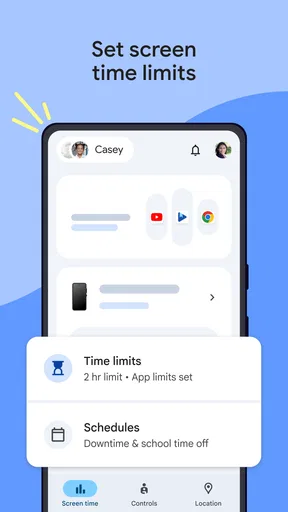
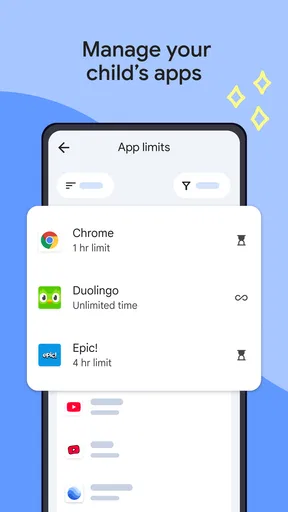
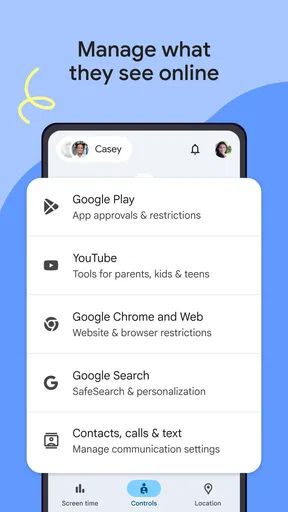
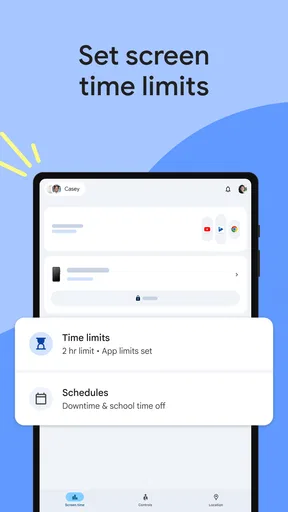
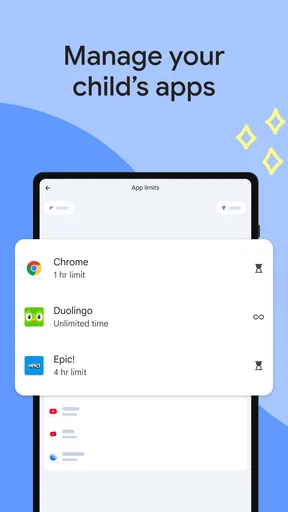
Alright, let’s dive into the juicy stuff—the features. One of the first things I noticed is the ability to manage apps. You can approve or block apps that your kid wants to download from the Google Play Store. It’s like having a virtual gatekeeper at your fingertips. Plus, you can set screen time limits for different apps, so your kid doesn’t spend all day glued to their favorite game.
Where it earns its place in a busy week
The app controls are particularly useful when a child asks for a new game or social app at the moment you are busy. Instead of making a rushed decision, I can review the request later and discuss why an app is or is not a good fit. That small pause is more valuable than a blanket ban: it gives parents a chance to set a rule consistently and gives children a clear reason for the answer.
One practical routine is to separate essential tools from entertainment before setting limits. If homework, reading, or a family calendar relies on the device, I would avoid treating every minute of use as equal. App-specific limits can help distinguish a game session from schoolwork, though they still need a parent to make sensible choices about which apps belong in each category. A limit is a boundary, not a substitute for checking whether the schedule works.
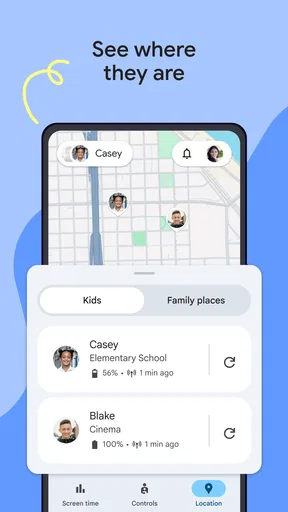
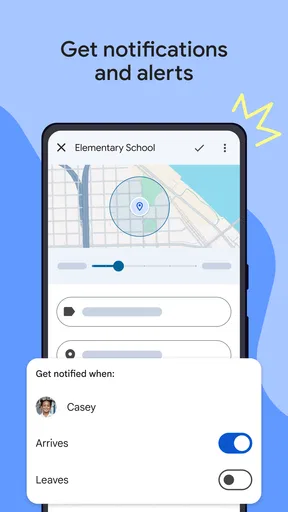
Location can be useful in ordinary transitions, too. Imagine a child walking home from a nearby activity while a parent is still at work. Checking the location can answer a simple “are they on the way?” question without turning every outing into a stream of messages. I would agree with the child in advance about when checking is reasonable. Location information works best as a safety aid, not as a way to follow every move.
Another helpful habit is to revisit settings after a change in routine. A school holiday, a new after-school activity, or a shift in bedtime can make an old schedule feel arbitrary. Rather than adding more restrictions, I would review which rules still solve a real problem and which can be relaxed. That makes the controls feel more like family agreements than a permanent set of penalties.
Guiding Digital Well-Being
Now, let’s talk about digital well-being. We all know kids can get lost in their screens, right? Well, Family Link helps you set daily screen time limits. You can even lock their device when it’s bedtime. No more late-night YouTube marathons! Plus, you can check out their activity reports to see what they’re up to online. It’s an eye-opener, trust me.
What the reports can—and can’t—tell you
Activity information is most useful as a starting point for a conversation. If a child’s time on one app has climbed, I would ask what they are doing there before assuming the number tells the whole story. A report can highlight a pattern, but it cannot explain whether a child was chatting with classmates, watching a tutorial, or simply leaving an app open. Treating usage as context rather than proof helps avoid needless arguments.
Bedtime locking can also create friction if the device is still needed for a legitimate task or an unexpected family message. I’d make the cutoff clear before the first evening it takes effect and agree on what happens when plans change. A rule that is predictable is easier to accept than a surprise shutdown, especially when a child is in the middle of something they consider important.
Educational Content and Recommendations
Family Link isn’t just about restrictions. It also suggests educator-approved apps that can help your kid learn. It’s nice to know that while they’re having fun, they’re also picking up some useful skills. The recommendations are age-appropriate, so you don’t have to worry about them stumbling upon something they’re not ready for.
How it compares with other approaches
Compared with relying only on a device’s built-in screen-time settings, Family Link puts family supervision and app decisions in a dedicated place. That can be easier for a parent who wants one recognizable routine for approvals, limits, and location rather than visiting several menus. The trade-off is that the family needs to be comfortable with Google accounts and with managing the child’s device through Google’s tools.
Some families may prefer the simpler route of setting rules directly on each device and checking in together, especially if they want fewer dashboards and less remote oversight. Others may be looking for a broader household filter or controls that work across a mix of services and devices. Those alternatives can suit a different priority; I would compare the exact devices and services in the home before switching, rather than assuming every parental-control app covers the same ground.
Family Link is therefore a stronger fit for parents who want practical supervision tied to a child’s Google-connected device than for someone seeking a completely hands-off solution. No app can replace age-appropriate conversations, and a control that works well on one device may not behave identically across another platform. If your family is mainly on Apple devices, I would test the important controls first and compare them with Apple’s built-in family settings before making Family Link the center of your routine.
Privacy and Security
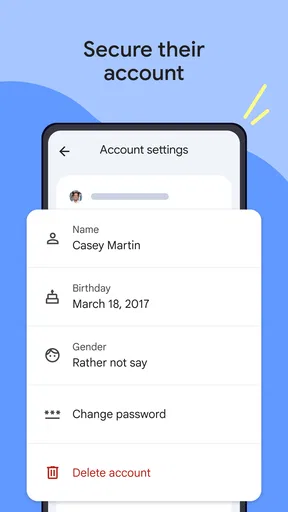
Okay, let’s touch on privacy because it’s a biggie. Google takes privacy seriously with Family Link. You can manage permissions and decide what data is shared. It’s reassuring to know that your family’s info isn’t just floating around the web. Plus, you can adjust these settings anytime, giving you full control over your kid’s digital footprint.
Making the move without a family-wide reset
If you are moving from another parental-control setup, I would not switch everything on at once. First, talk through the rules you want to keep, then set up the essential controls and test them with the child present. Confirm that app approvals make sense, that the daily routine is workable, and that the location check is understood. A calm trial period can reveal mismatches before they become a nightly dispute.
Families already using Google accounts may find the transition more natural. For a household built around another platform, the account setup and differences in how controls behave can be the main cost—not a fee, but time and adjustment. I would keep the old routine available until the new one has proved reliable for your family, then remove duplicate rules so a child is not caught between conflicting limits.
Some Things to Consider
Now, while I’m all praises, there are a couple of things to keep in mind. Family Link is pretty robust, but it does require a bit of setup and maintenance. You’ll need to check in every once in a while to ensure everything’s running smoothly. Also, some features work better on Android than iOS, which is something to think about if you’re an Apple family.
It is also not the right choice for every household. Parents who want to avoid managing a child’s Google account, or who would rather agree on limits without using a monitoring app, may be happier with device-level settings or direct family conversations. And if you need a single set of controls across a varied collection of devices and services, check compatibility carefully before relying on it. A well-known tool is not automatically the best match for every home.
Oh, and one more thing—communication is key. Talk to your kids about why you’re using Family Link. It’s not just about control; it’s about safety and setting healthy boundaries. Kids are pretty understanding when you explain things from their perspective.
Who I’d recommend it to
I’d recommend Family Link to a parent who wants a free, approachable way to guide app choices, shape device routines, and check a child’s location when there is a sensible reason. It is especially appealing if the household already uses Google accounts and the parent is willing to review settings instead of expecting the app to make every judgment automatically.
I’d be more cautious if the child is old enough to manage their own device and the family has not agreed on what supervision means. In that situation, installing controls first can damage trust even if the intention is safety. I would start with a discussion, choose one or two boundaries together, and use the app only where it supports that agreement. For a family that wants no ongoing oversight or account-based setup, a lighter approach may be a better fit.
All in all, Google Family Link is a fantastic tool for any parent who wants to stay in the loop with their kids’ digital lives. It’s easy to use, packed with features, and gives you peace of mind. So go ahead, give it a whirl, and see how it works for your family. Happy parenting!
Verdict
Strengths of Google Family Link
- User-friendly interface for easy navigation.
- Comprehensive activity reports for parents.
- App usage limits can be easily set.
- Location tracking for added safety.
- Free to use with no hidden costs.
Limitations of Google Family Link
- Limited control over app permissions.
- Not compatible with all devices.
- Requires internet for real-time updates.
- Child can request device access frequently.
- Some features may invade privacy.
Other Releases by Google LLC
View All
Google Calendar
Productivity4.6

Google Messages
Communication4.6

Tools4.0

Google TV
Video Players & Editors3.9
Similar Picks in This Category
View AllGoogle LLC4.0

Gboard - the Google Keyboard
Google LLC4.5

Google Play services
Google LLC4.3

Google Play Store
Google LLC4.9

Files by Google
Google LLC4.5

SHAREit: Transfer, Share Files
Smart Media4U Technology Pte.Ltd.4.3
Frequently Asked Questions
What is Google Family Link and how does it work?
Google Family Link is an app designed for parents to manage and monitor their child's device usage. It allows parents to set screen time limits, approve or block apps, and track their child's location. Once installed on both the parent's and child's devices, it syncs up to provide a comprehensive overview of the child's digital activities.
Is Google Family Link safe for my child to use?
Yes, Google Family Link is designed with safety in mind. It provides parents with tools to monitor app usage and manage screen time responsibly. The app also includes features to ensure that children only download age-appropriate content. However, it requires an active internet connection and access to the child's location, so parental discretion is advised.
Can my child bypass Google Family Link's controls?
While Google Family Link is designed to be robust, tech-savvy children may find ways to circumvent its controls, such as using a different device. However, Google frequently updates the app to enhance security and reduce loopholes. Open communication with your child about digital safety is essential to complement the app's features.
Does Google Family Link have any limitations or downsides?
One limitation of Google Family Link is that it only works with Android devices running version 7.0 or higher and iOS devices for parents. Some users report issues with app performance or connectivity. Additionally, children might feel a lack of privacy, so it’s important to discuss the purpose of the app with them.
Is Google Family Link free to use, and are there any in-app purchases?
Google Family Link is completely free to download and use, with no hidden costs or in-app purchases. It provides a wide range of features without requiring payment, making it accessible for most families. However, data usage charges may apply based on your mobile plan, especially when using location tracking features.
